 Vox Stella
Screen At A Glance
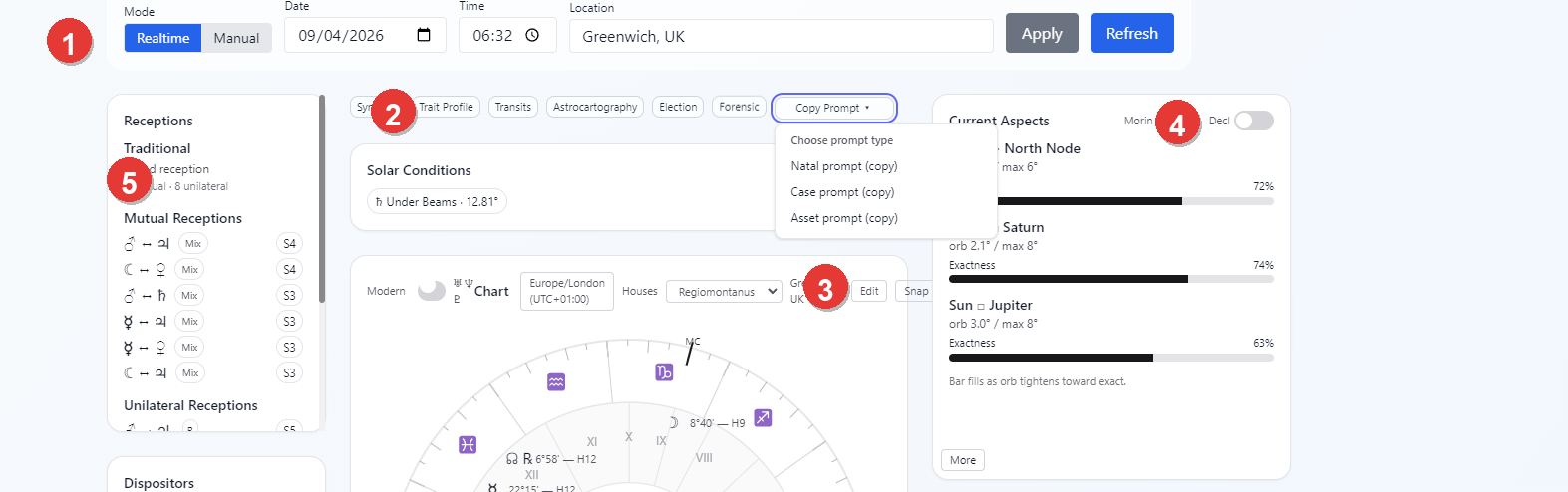
- Realtime and Manual chart controls
- Feature launch bar
- Main chart panel, including the Snap button
- Current Aspects card and the
Moreentry point into Aspect Analysis - Reference tiles for receptions and related chart context
The Astro Clock workspace combines three jobs in one place:
- follow the current chart in realtime
- move the chart into a fixed manual state
- hand that chart context to the other Astro Clock tools
The main workspace also shows reference panels such as receptions, dispositors, fixed stars, solar conditions, Moon condition, saved snaps, metrics, cusps, cusp aspects, and bearings.
Realtime And Manual Modes
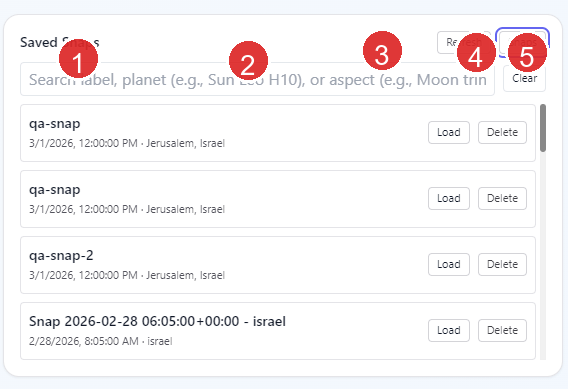
- Mode toggle
- Date and time inputs
- Location input
- Apply button
- Refresh button
The current UI calls the live mode Realtime. If you think of this as the automatic mode, that is the correct equivalent.
Realtime
Use Realtime when you want Astro Clock to follow the active live chart for the current moment and place.
- The chart updates automatically while Realtime is active.
- Refresh re-requests the current Astro Clock data without changing mode.
- If you open a deeper Astro Clock feature from Realtime, Vox Stella pauses the live chart first so the modal works from a stable chart state.
Manual
Use Manual when you want to hold Astro Clock on a fixed chart.
- Enter a date, time, and location.
- Click
Applyto switch the workspace to that fixed chart. - The chart stays on that saved moment until you change it or return to Realtime.
Loading a saved snap also moves Astro Clock into Manual mode using the snap's stored date, time, and location.
Saved Snaps
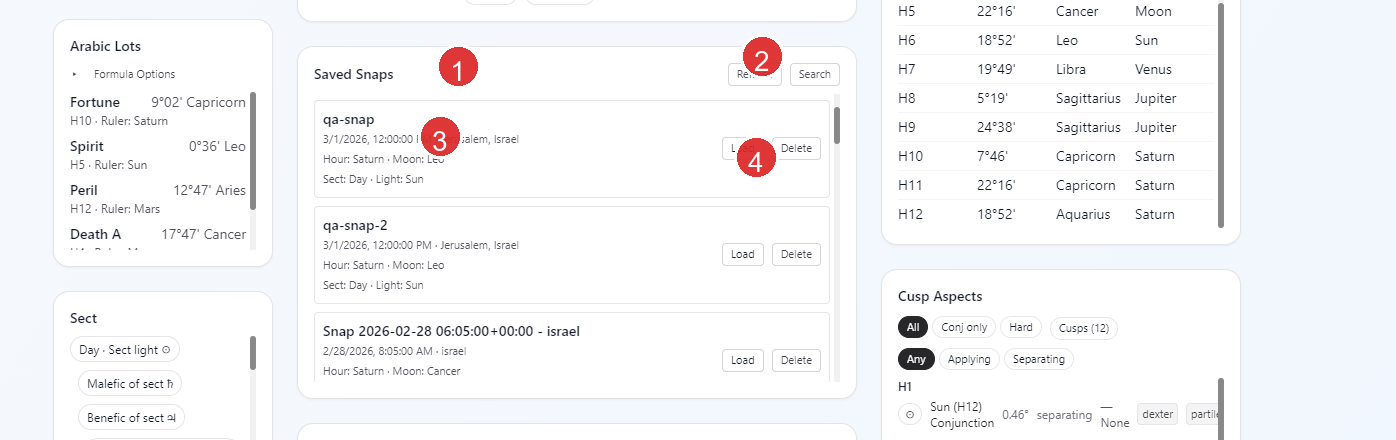
- Saved Snaps section
- Refresh and Search or Snaps toggle
- Snap label, timestamp, and location
- Load and Delete actions
Saved snaps are not screenshots. They are stored chart snapshots that keep the chart timestamp, location, a summary, and the chart payload needed by other Astro Clock tools.
How To Create A Snap
- In the main chart panel, click
Snap. - Vox Stella saves the current Astro Clock chart with a generated label based on the current timestamp and location.
What A Saved Snap Includes
Each snap can carry:
- the saved chart timestamp
- the saved location
- the saved chart summary, including the planetary hour ruler, Moon sign, and chart sect
- the stored chart payload used by snap-based tools
What You Can Do In Saved Snaps
Refreshreloads the saved snap list.Loadrestores that snap into Astro Clock and places the workspace in Manual mode.Deleteremoves the snap from local storage.Searchswitches the panel into search mode.
Search mode can search more than labels. It indexes saved snap content so you can search:
- snap labels
- location text
- planet names with sign and house combinations such as
Sun Leo H10 - stored aspect phrases such as
Moon trine Venus
Use the dedicated Saved Snaps Guide when you want the full storage, search, and cross-feature workflow explanation.
Why Saved Snaps Matter
Saved snaps are the bridge between the main Astro Clock view and the deeper Astro Clock features.
- They let you return to a chart later without rebuilding it manually.
- They let you move a previously saved chart back into the main Astro Clock workspace.
- Some Astro Clock tools require saved snaps.
- Other Astro Clock tools can work without a saved snap, but become stronger or more specific when one is available.
How Saved Snaps Feed Other Astro Clock Tools
Synastry
Synastry is fully snap-based.
- It requires two different saved snaps.
- You choose one chart as
Snap Aand one chart asSnap B. - The report compares those saved charts directly.
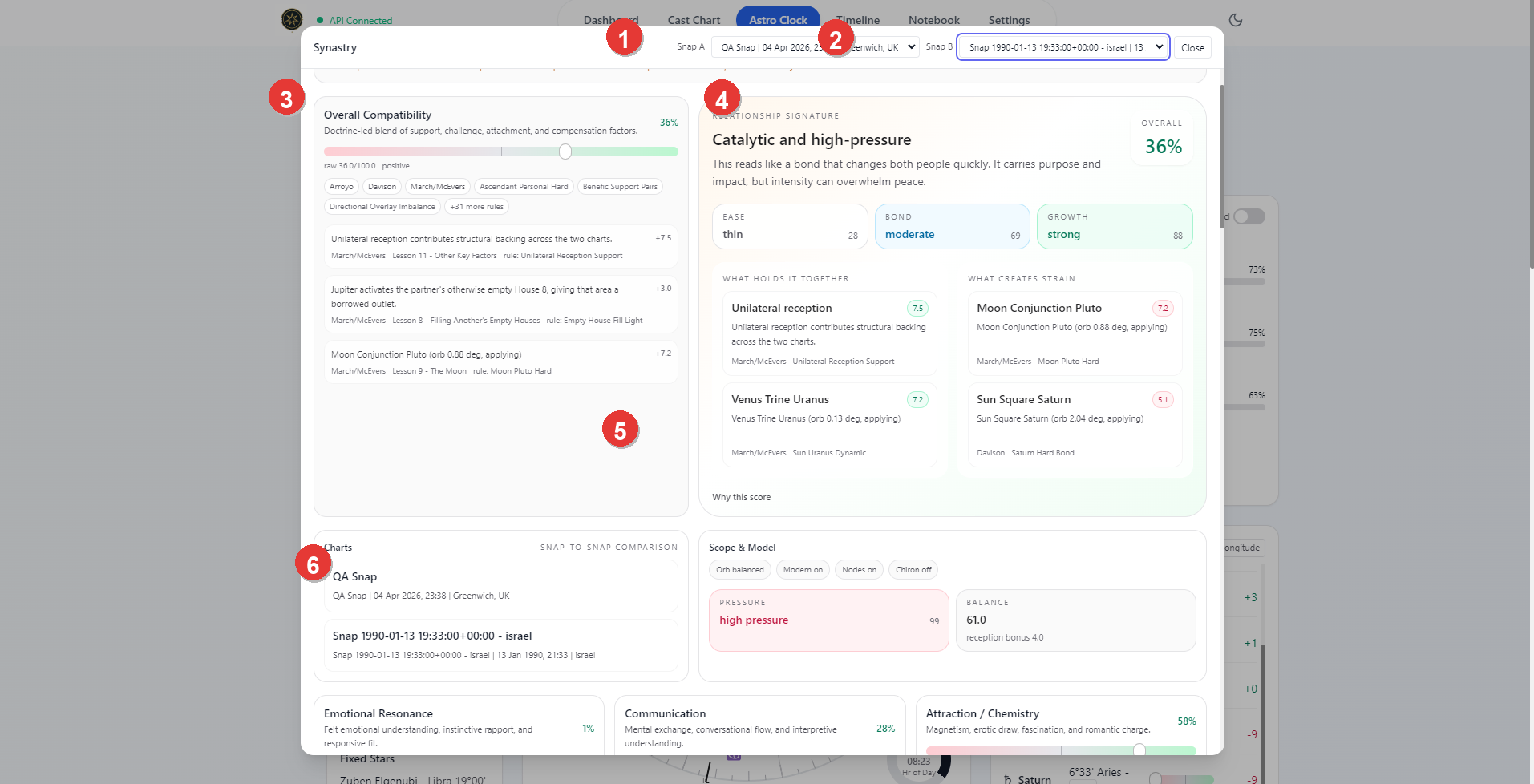
- Snap A selector
- Snap B selector
- Overall compatibility panel
- Relationship signature and primary interpretation
- Snap-to-snap chart comparison card
- Scope and model controls
Transits
Transits can work in two ways:
Manual Natal, where you enter natal date, time, and location directlySaved Snap, where a saved Astro Clock snap becomes the natal source
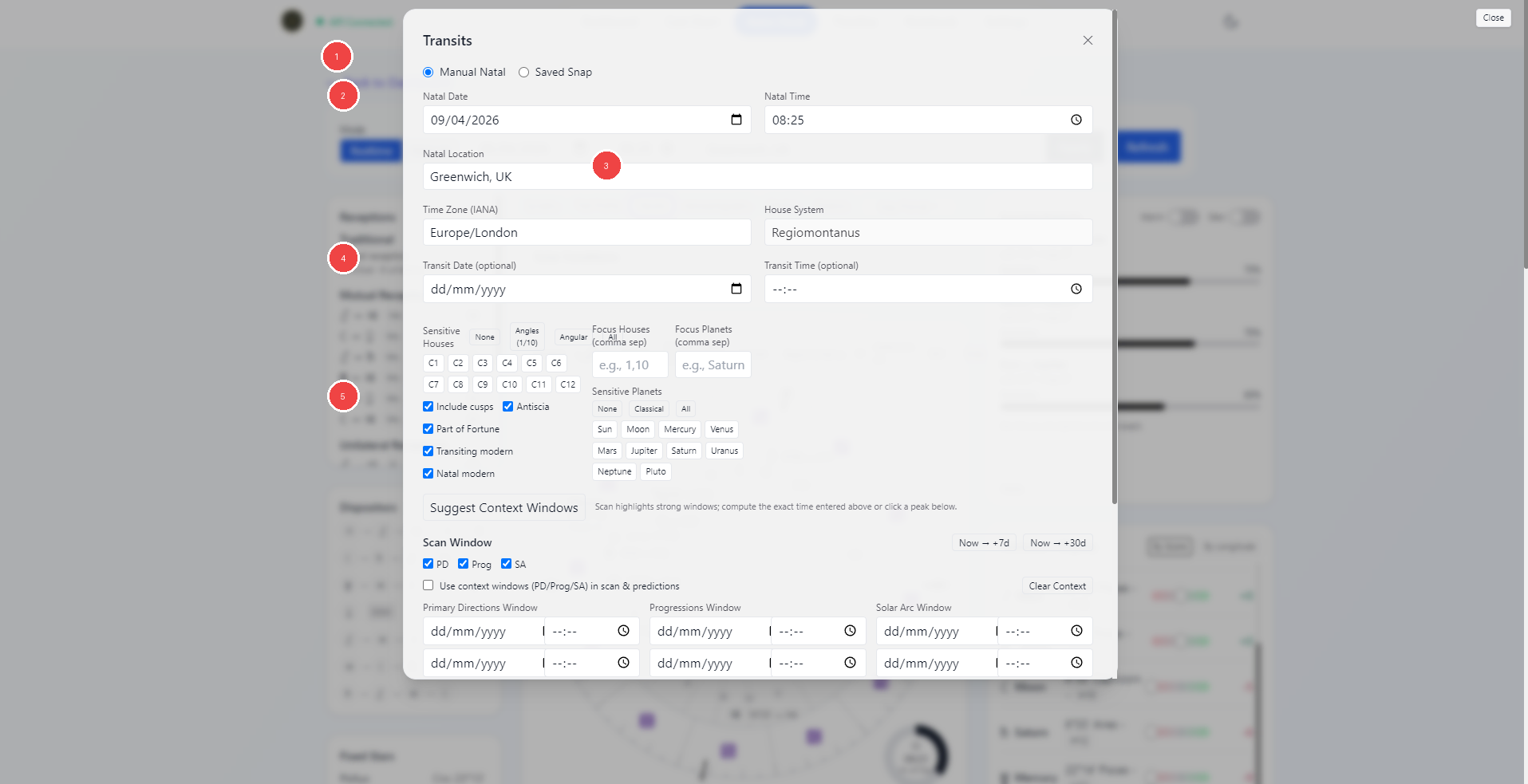
- Natal source selector
- Natal chart fields
- Transit date, transit time, and house-system setup
- Sensitivity filters for houses, planets, and optional layers
- Context-window and scan-window controls
In the current app:
- point-in-time transit reading can use either manual natal data or a saved snap
- window scanning can use either manual natal data or a saved snap
- the predictor can use either manual natal data or a saved snap
If you choose Saved Snap, the selected snap becomes the natal chart source for the scan and predictor paths.
Astrocartography
Astrocartography is snap-first in the current app.
- A saved natal snap is required.
- If you do not have one yet, the modal can save the current Astro Clock chart as your first natal snap.
- Transit mode adds an overlay on top of the natal map instead of replacing the natal base.
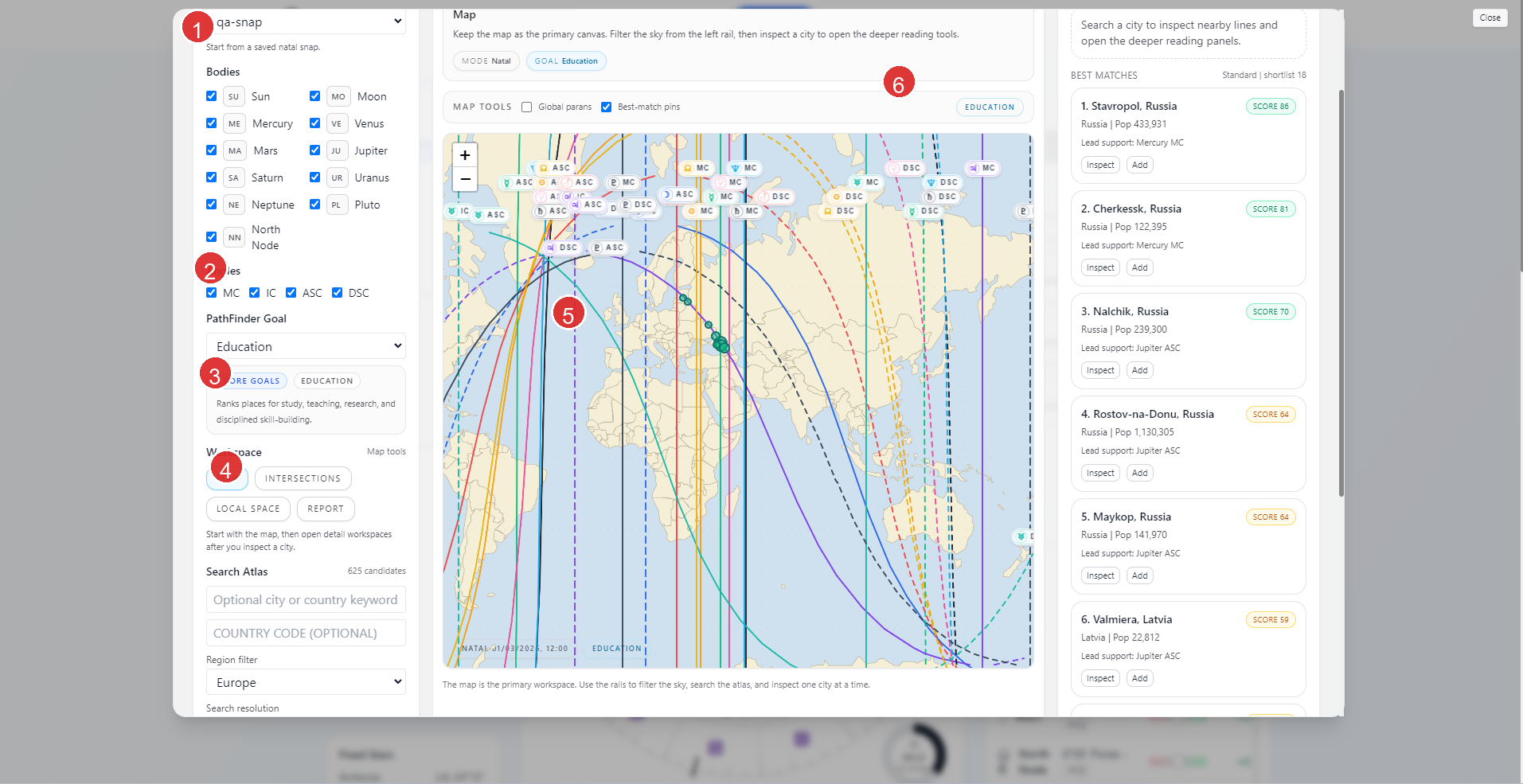
- Natal snap selector
- PathFinder Goal chooser
- Workspace tabs
- Search Atlas controls
- Map workspace
- Best Matches or inspector rail
The Astrocartography workspace includes:
MapIntersectionsLocal SpaceReport
The main flow is:
- choose a saved natal snap
- choose a PathFinder goal if needed
- inspect the map or search best cities
- open a city for deeper reading
- move into the other workspaces when you want a more focused interpretation
Use the dedicated Astrocartography Guide for the main map workflow and the Astrocartography PathFinder Guide when you want the goal families, atlas search progress, and best-match shortlist flow in detail.
Election
Election does not always require a saved snap, but a saved snap changes what the engine can do.
- Without a saved snap, election scanning can still run from transit-only chart conditions.
- With a saved snap, supported matters can layer natal promise checks and related natal timing context.
In the current UI, the election modal exposes Natal source as None or Saved snap.
Trait Profile
Trait Profile works from the active Astro Clock chart.
- If Astro Clock is in Realtime, the app pauses that live chart first before opening the modal.
- If you want Trait Profile to read a previously saved chart, load that snap into Astro Clock first and then open Trait Profile.
- Use the dedicated Trait Profile Guide when you want the full filter, source-layer, and house-influence walkthrough.
Forensic
Forensic also works from the active Astro Clock chart.
- Opening it from Realtime pauses the chart first.
- If you want the forensic tools to read a previously saved chart, load the snap into Astro Clock first.
- Use the dedicated Forensic Guide for the investigative sections, abduction mode, AI brief, and export workflow.
Other Astro Clock Entry Points
Current Aspects And Aspect Analysis
The Current Aspects card shows the strongest live aspect set in the current chart.
- Use
Moreto open the fuller Aspect Analysis modal. - Aspect Analysis lets you switch between planetary aspects, declinations, and cusps.
Copy Prompt
The Copy Prompt menu uses the current Astro Clock context to copy:
- natal prompt
- case prompt
- asset prompt
These prompt helpers are tied to the active chart context, so loading a snap first changes the context they copy from.
Practical Workflow
For most users, the cleanest Astro Clock workflow is:
- start in Realtime to inspect the current chart
- switch to Manual when you want to hold a fixed time
- click
Snapwhen a chart should be kept for later reuse - load a saved snap before opening any feature that should read that exact chart
- use snap-based tools such as Synastry or Astrocartography when you need persistent chart references
Notes
- Saved snaps are stored locally for this app installation.
- Loading a snap is the fastest way to turn a previously saved chart into the active Astro Clock context.
- Synastry requires two different saved snaps.
- Astrocartography requires a saved natal snap.
- Transits can work either from manual natal inputs or a saved snap.
- Election can run without a snap, but a saved snap unlocks natal overlay behavior for supported matters.