 Vox Stella
Why Saved Snaps Matter
Saved snaps are the bridge between the main Astro Clock workspace and the feature modals that need a stable chart reference.
They are not screenshots. A saved snap is a stored chart record that keeps:
- the chart timestamp
- the chart location
- the chart summary used in the list view
- the chart payload used by snap-aware Astro Clock tools
- any special-degree tokens that were active when the snap was created
This is why snaps can be reused for analysis later instead of only serving as visual reminders.
Screen At A Glance
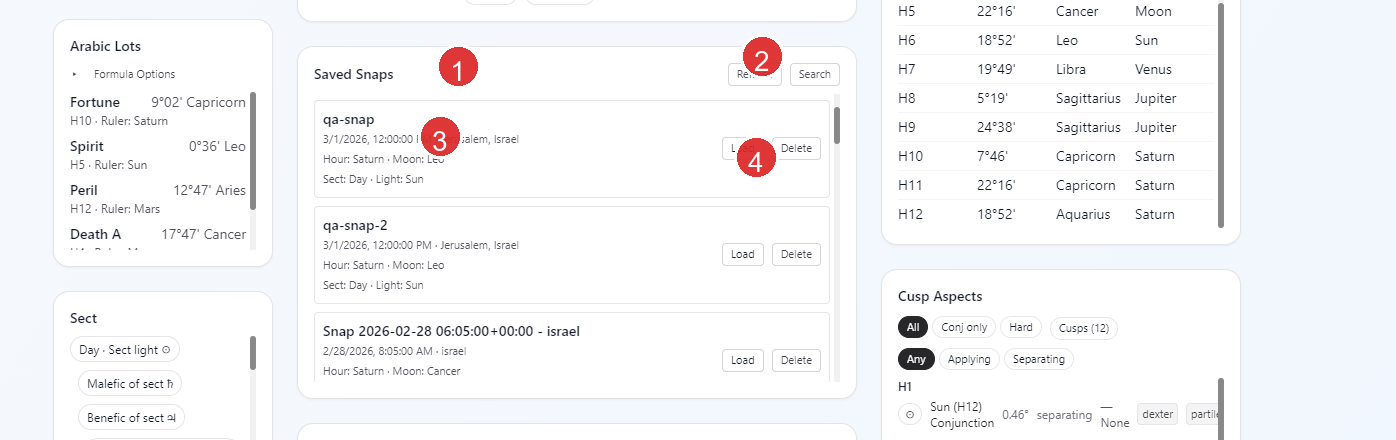
Saved SnapspanelRefreshandSearchcontrols- Saved snap entry showing label, time, location, and summary lines
LoadandDeleteactions
How To Create A Snap
Use the Snap button in the main Astro Clock chart panel.
In the current app:
- clicking
Snapsaves the chart that Astro Clock is currently holding - the label is generated automatically from the current timestamp and location
- the saved snap is added to the local snap store
There is no naming prompt in the current workflow. The app generates the label for you.
What The List View Shows
The Saved Snaps list is intentionally compact.
Each row can show:
- the snap label
- the saved date and time
- the saved location
- the planetary hour ruler
- the Moon sign
- the chart sect and sect light
This summary comes from the saved chart record itself, not from a separate manual note.
Refresh, Load, And Delete
Refresh
Refresh reloads the current snap list from the local snap store.
If snaps have not yet been loaded for the current session, the panel can show a message telling you to click Refresh when needed.
Load
Load restores that saved chart into the main Astro Clock workspace.
When you load a snap, the current app:
- switches Astro Clock into
Manual - restores the snap timestamp and location
- restores the snap's special degrees when they were saved with the snap
- refreshes the main dashboard and planetary hours from that loaded chart state
This is the key handoff that makes a snap usable in the rest of Astro Clock.
Delete
Delete removes the snap from the local snap store.
This is a local delete, not an archive action.
Search Mode
Use the Search button to switch the panel from the normal list view into snap search mode.
The search index is built on demand from the full snap details. In the current implementation, the search text can include:
- snap labels
- location text
- chart sect
- sect light
- planetary hour ruler
- Moon sign
- planet, sign, and house combinations such as
Sun Leo H10 - aspect phrases from the snap's top-aspect set and tightest aspect, such as
Moon trine Venus
The search works as a token-based contains match:
- each word you type becomes a search token
- all tokens must be present for a result to match
- an empty search shows the first portion of the indexed snap list
This makes search useful for both broad recall and narrow technical lookups.
Where Saved Snaps Are Used
Saved snaps are central to Astro Clock, but not every feature uses them the same way.
Required
Synastryrequires two different saved snapsAstrocartographyrequires a saved natal snap
Optional But Important
Transitscan use a saved snap as the natal source instead of manual natal entryElectioncan use a saved snap as the natal source when natal-aware options are in play
Indirect But Still Important
Trait Profilereads the active Astro Clock chart, so loading a snap first changes what it analyzesForensicalso reads the active Astro Clock chart, so loading a snap first changes what it analyzes
This is why loading the correct snap before opening a feature often matters more than any later modal setting.
Storage And Retention
Saved snaps are stored locally in a filesystem-backed JSON store.
In the current backend:
- snaps are written to a user-writable local store
- retention is bounded
- the default maximum is 500 snaps unless the runtime is configured differently
That means snaps are local application data, not a cloud account feature.
Practical Workflow
For most users, the cleanest snap workflow is:
- hold the chart you want in Astro Clock
- click
Snap - use
Refreshif you need to confirm the latest saved list - use
Loadwhen you want Astro Clock to return to that exact saved chart - use
Searchwhen you are trying to find an older chart by location, aspect, or planet pattern - load the relevant snap before opening Synastry, Astrocartography, Trait Profile, Forensic, or any snap-aware transit or election workflow
Notes
- Saved snaps are chart records, not image captures.
- Loading a snap changes the active Astro Clock chart by moving the workspace into
Manual. - Search is richer than label matching; it can match chart content from the saved dashboard payload.
- The snap list is local to the current machine and runtime data store.