 Vox Stella
Before You Start
Synastry is fully snap-based in the current app.
- You need at least two saved snaps.
Snap AandSnap Bmust be different.- The modal compares those stored charts directly.
- The saved chart snapshot is reused as-is. Changing the live Astro Clock house system does not recast an already saved pair.
If you do not yet have two snaps, save them in Astro Clock first and then reopen Synastry.
Screen At A Glance
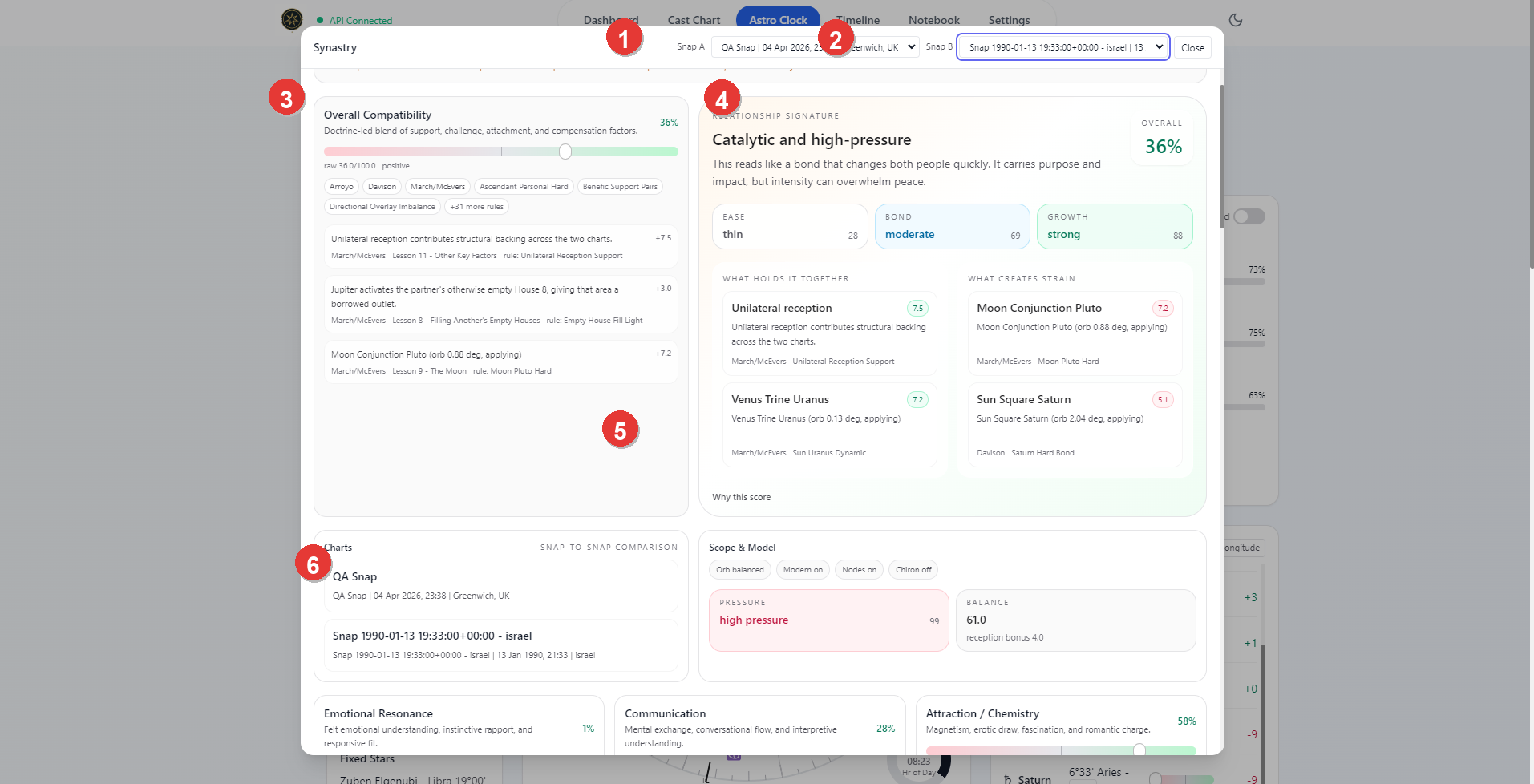
- Synastry title and top bar
- Snap A and Snap B selectors
- Overall Compatibility score card
- Relationship Signature and axis summary
- Supportive and challenging link columns
- Charts and snap-to-snap comparison panel
Choosing The Charts
The top bar is simple by design.
- choose the first chart under
Snap A - choose the second chart under
Snap B - keep the two selections different
The report refreshes from the selected pair.
Engine Tabs
Synastry now supports multiple comparison engines.
Memokeeps the existing narrative reportLife Themesruns the full-house structured engineUnion Dynamicsruns the partnership-and-home engineWork Allianceruns the collaboration engine
Each tab recomputes from the same two frozen snap charts and the same optional scope settings.
Scoring Scope
Below the header, Synastry exposes the scoring scope controls for the pair.
The current UI supports:
Modern planetsNodesChironOrb profile
These controls change scoring layers and orb tolerance only. They do not rebuild the saved base charts with the current workspace settings.
Orb profile can be set to:
TightBalancedWide
Some optional point layers can be disabled by the build itself. For example, the modal can warn when modern points or Chiron are not available in the current data path.
Union Dynamics also exposes two profile selectors:
Profile AProfile B
These control the direct pattern used by that engine.
- if a saved snap carries a profile hint, the selectors default from that hint automatically
- otherwise they fall back to
Blended FeminineandMasculineuse the decoded source slot tablesBlendedremains the app fallback for snaps that do not carry source-side profile metadata
Main Reading Areas
Overall Compatibility
The left summary card shows the overall compatibility score and the main component signals that shaped it.
This area answers the basic question: how supportive or difficult is the pair under the current scoring scope.
Structured Engine Totals
The structured engines show a different summary block.
They surface:
Theme totalAspect totalPressureComposite total
These totals are app-side aggregations over the returned lists. They are summary aids, not native hidden scalar outputs from the source engine notes.
Work Alliance also adds a live Durability check panel.
That reading is an app-side interpretation layer built from the engine's own totals:
- business-house foundation
- shared contact layer
- pressure load
It is meant to answer a practical question the raw business lists do not answer directly: does the pair read as able to hold collaboration over time, or as productive but more fracture-prone.
Relationship Signature
The relationship signature panel gives the report a short verbal identity and then breaks it into the main axes.
The current modal surfaces:
EaseBondGrowth
This is the quickest place to understand the balance of ease, attachment, growth, and pressure in the pair.
What Holds It Together And What Creates Strain
The signature panel also shows two short signal columns:
- supportive patterns
- strain patterns
These are the strongest relationship-level summaries in the report.
Charts And Scope
The lower comparison panels show:
- the two snaps being compared
- the scope and model chips currently in force
- pressure and balance summaries
This is useful when you want to confirm which saved charts and which optional layers produced the current reading.
Deeper Result Sections
Farther down, the modal expands the report into more detailed sections.
The current report can include:
- dimension cards such as emotional resonance, communication, attraction, or other thematic categories
- top supportive links
- top challenging links
- house overlay columns showing one chart inside the other
- a source stack or governance section when source metadata is available
These lower sections turn the high-level signature into a more detailed working interpretation.
For the structured engines, the lower sections switch to grouped theme totals, burden rows, and shared contact rows instead of the memo-only narrative layout.
The current structured workspace opens on an Areas page first.
Areasrecreates the four-stripe diagnostic view from the structured engine pools- the other page tabs open the row-level section tables for themes, bond/home groups, pressure rows, or contact rows
- row tables now show a
MIDcolumn using astrology glyph strings when the saved chart payload supports them
Practical Workflow
For most users, the cleanest Synastry workflow is:
- save the two charts you want to compare as Astro Clock snaps
- open Synastry
- choose
Snap AandSnap B - adjust the scope toggles only if you want a narrower or wider reading
- start with the overall compatibility and relationship signature
- if you switch to a structured engine, start with the total cards and then move through the returned theme and pressure sections
- move down into supportive links, challenging links, and overlays for the detailed read when you are using
Memo
Notes
- Synastry requires two saved snaps.
- It does not use free manual chart entry in the current app.
- Scope toggles such as modern planets or Chiron can be limited by the build and available ephemeris support.
Work Alliancemaps to the dedicated business compatibility notes and uses the business house cluster1,2,6,7,10.Work Alliancenow includes a live durability read inside the verdict block so the business engine can speak more directly about staying power versus fracture risk.Life ThemesandWork Alliancenow use the decoded house-group helper from the research notes rather than the earlier ruler-plus-occupant proxy.