 Vox Stella
Before You Start
Forensic reads the active Astro Clock chart.
- If you want to investigate a previously saved chart, load that saved snap into Astro Clock first and then open
Forensic. - If Astro Clock is in
Realtime, Vox Stella freezes the live chart into a stable snapshot before the forensic workspace opens. - The modal supports different case profiles and an optional abduction mode, but it still starts from the active chart context already held in Astro Clock.
Screen At A Glance
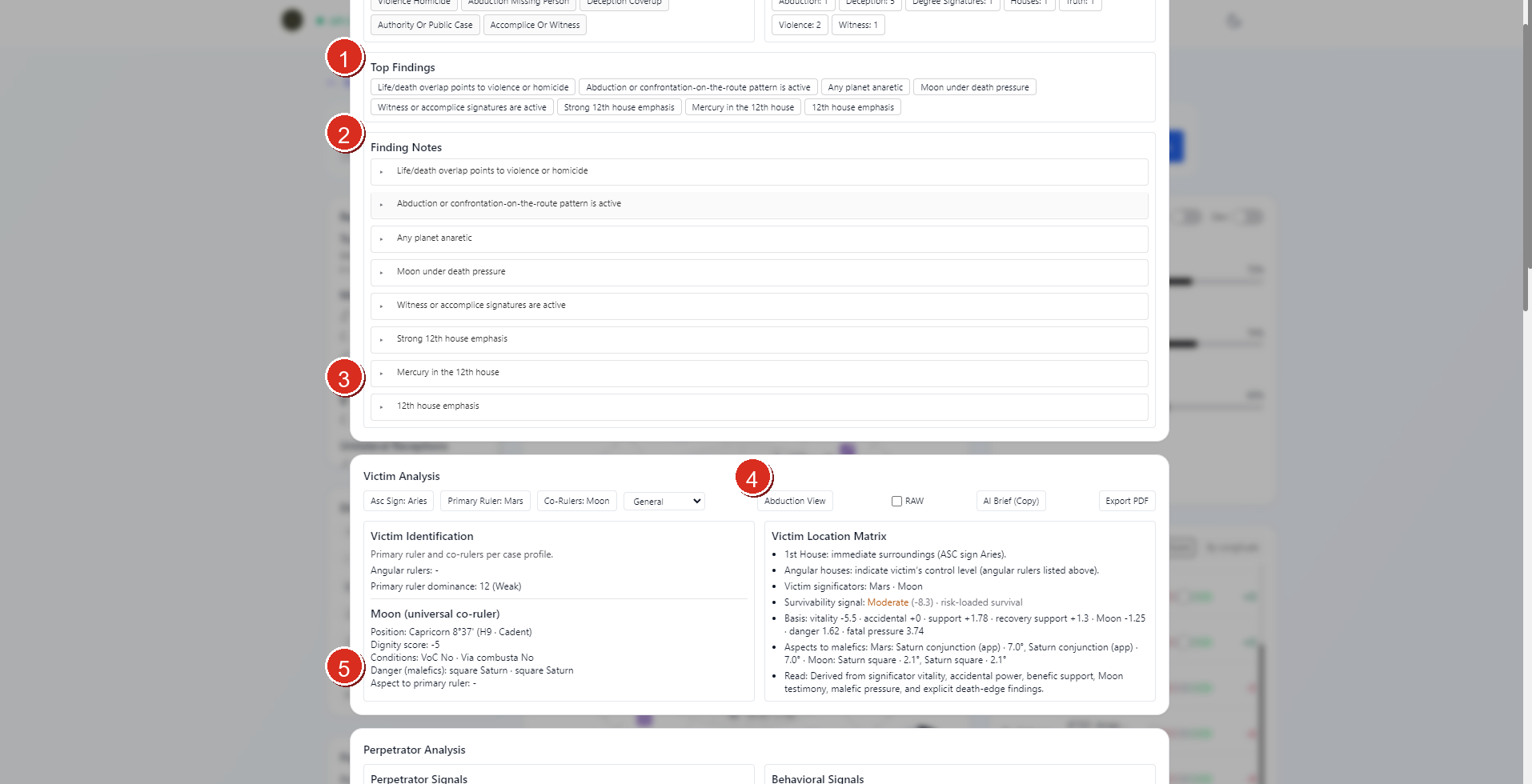
- Top Findings summary chips
- Finding Notes header and expandable note stack
- Lower portion of the finding-note stack before the deeper analysis cards
- Victim Analysis header and control row
- Main victim-analysis panels leading into the lower analysis sections
The upper part of the workspace does two jobs first:
- it compresses the strongest rule hits into
Top Findings - it keeps the fuller rationale in
Finding Notes
Below that, the modal moves into the larger analysis sections.
Top Controls
The current Forensic header includes:
- a case-profile selector
Abduction ViewRAWAI Brief (Copy)Export PDF
Case Profile
The current UI supports these case profiles:
GeneralChild caseAdult female
The selected profile changes how the victim significators are framed in the analysis.
RAW
RAW adds the compact raw-value block to the AI brief output. This is useful when you want the copied brief to carry the chart data in a more explicit technical form.
AI Brief (Copy)
AI Brief (Copy) copies a structured forensic brief built from the current forensic state.
That brief is generated from the same chart, findings, and optional abduction context you are seeing in the modal.
Export PDF
Export PDF exports the current forensic report from the live modal state.
This is the cleanest way to preserve the current workspace as a standalone report once the chart and settings are where you want them.
Main Investigative Sections
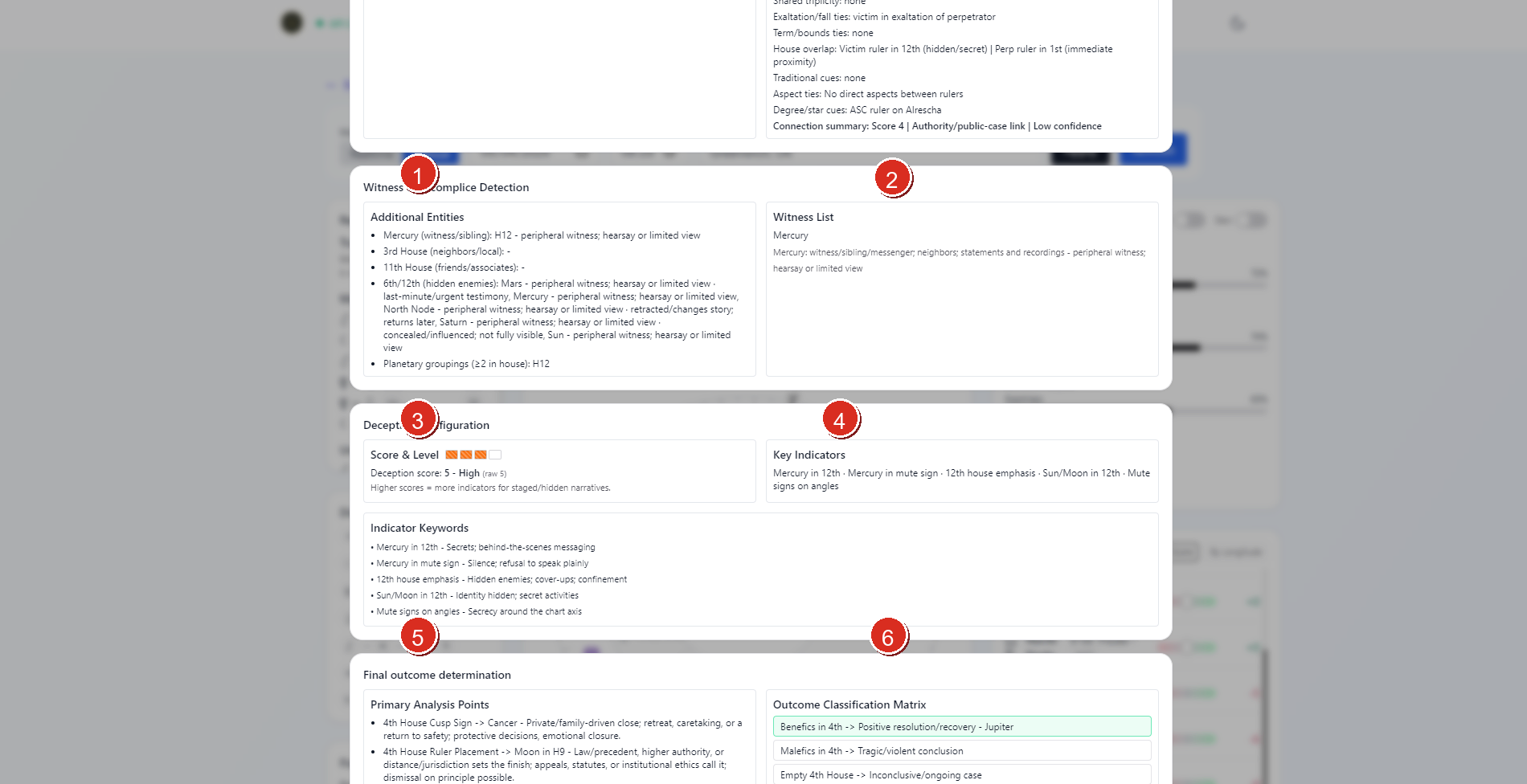
- Witness & Accomplice Detection section
- Witness List panel
- Deception Configuration score block
- Deception key-indicator panel
- Indicator keyword summary
- Final outcome determination section
Once you move past the opening findings and victim or perpetrator blocks, the modal expands into the core working sections.
Victim Analysis
The first large section focuses on the victim-significator side of the chart.
The current UI can surface:
- primary ruler and co-ruler framing from the case profile
- Moon condition as a universal co-ruler
- angularity, dignity, and danger notes
- a victim-location matrix
- survivability signal and supporting basis notes
Perpetrator Analysis
The next major section turns to perpetrator signals and behavioral framing.
In the current workspace this includes distinct panels such as:
- perpetrator signals
- behavioral signals
- relationship-style or linkage cues when the chart supports them
Witness & Accomplice Detection
This section focuses on additional entities and witness-style signatures.
It can surface:
- additional entity notes
- witness lists
- related house and planetary grouping cues
Deception Configuration
This section scores concealment or staging pressure in the chart.
It can show:
- a deception score and level
- key indicators
- indicator keywords that summarize the strongest deception-related signals
Final Outcome Determination
This section collects the outcome-facing conclusions from the current chart.
It can include:
- primary analysis points
- an outcome classification matrix
- category-driven final read pressure
Abduction View
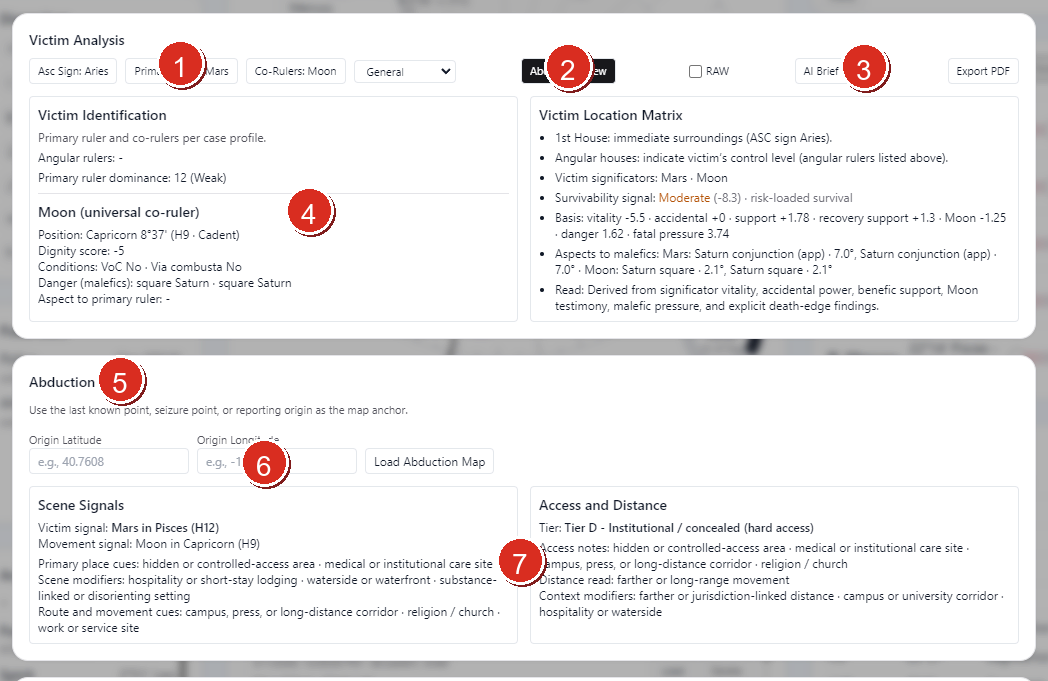
- Case-profile and victim-significator summary controls
Abduction ViewtoggleRAW,AI Brief (Copy), andExport PDFactions- Victim Analysis remains visible in abduction mode
Abduction Cuessection- Origin latitude, origin longitude, and
Load Abduction Map - Scene-signal and access-distance summaries
Abduction View adds location-and-route oriented panels on top of the base forensic reading.
The current abduction workflow is:
- switch on
Abduction View - enter the origin point
- click
Load Abduction Map - read the cue summaries and map output
The UI text explicitly recommends using the last known point, seizure point, or reporting origin as the map anchor.
What Abduction Mode Adds
When abduction mode is active, the workspace adds:
- an
Abduction Cuessection - origin latitude and longitude inputs
Load Abduction Map- scene-signal summaries
- access-and-distance summaries
- an
Abduction Mapsection farther down when the origin and map data are available
This mode is an extension of the current forensic reading, not a separate chart workspace.
Practical Workflow
For most users, the cleanest Forensic workflow is:
- load the chart you want Astro Clock to hold
- load a saved snap first if the investigation should be tied to a previously stored chart
- open
Forensic - choose the case profile that matches the case
- read
Top FindingsandFinding Notesfirst - move through Victim Analysis, Perpetrator Analysis, Witness & Accomplice Detection, Deception Configuration, and Final outcome determination
- turn on
Abduction Viewonly if the case needs the location and movement layer - use
AI Brief (Copy)orExport PDFonce the workspace reflects the state you want to preserve
Notes
- Forensic works from the active Astro Clock chart rather than a separate saved-snap selector inside the modal.
- Loading a saved snap first changes what the forensic engine reads.
RAWaffects the copied AI brief, not just the visual layout.- Abduction mode is optional and only becomes fully useful once you provide an origin point and load the map.