 Vox Stella
Before You Start
Astrocartography is snap-first in the current app.
- A saved natal snap is required.
- If you do not already have one, the modal can save the current Astro Clock chart as your first natal snap.
- Transit mode overlays time-sensitive lines on top of the natal base and does not replace the natal map.
Screen At A Glance
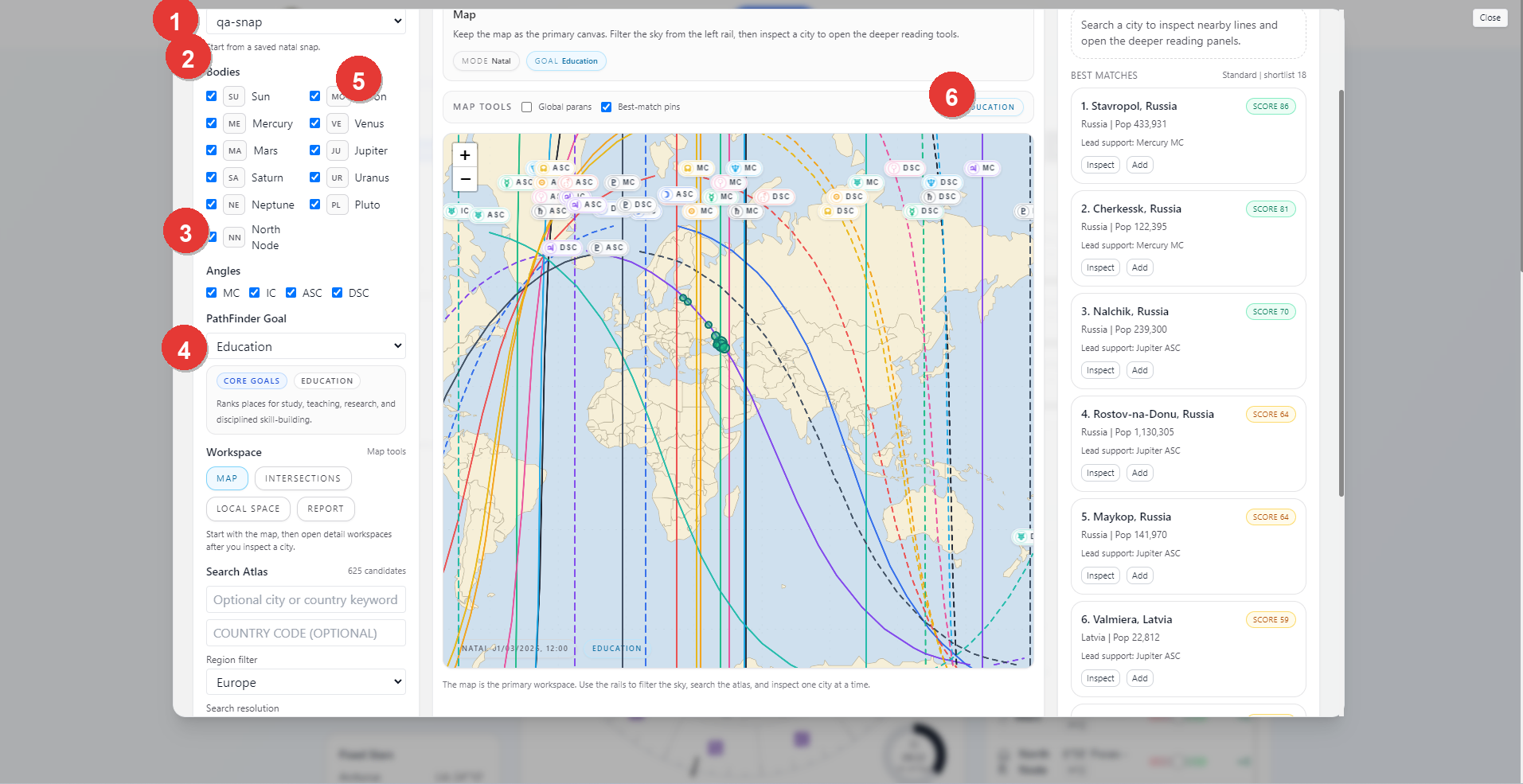
- Natal snap selector
- Body and angle filters
- PathFinder Goal chooser
- Workspace tabs and Search Atlas controls
- Map canvas and map tools
- Best Matches rail
Starting The Workspace
The usual starting flow is:
- choose a saved natal snap
- decide whether you are working in natal mode or transit mode
- choose the bodies and angles you want to inspect
- choose a PathFinder goal if you want ranked city results
- use the map directly or run atlas search
If you open the modal before any natal snap exists, the setup screen lets you save the current Astro Clock chart as a snap and return to the workspace.
Natal Snap And View Mode
The selected natal snap is the base chart for the entire workspace.
The top controls let you switch between:
NatalTransit
When Transit is active, the modal adds an overlay chart context on top of the natal base. The transit chart can use the live current time or manual date and time fields, plus an optional transit location and time zone.
Body And Angle Filters
The left rail lets you decide which lines are in view.
- Bodies can be turned on or off individually.
- Angles such as
MC,IC,ASC, andDSCcan be turned on or off.
Use these filters before running atlas search when you want the map and results to reflect only the lines that matter for the question.
PathFinder Goal
The PathFinder Goal control changes how ranked city results are scored.
General inspectionkeeps the reading neutral.- A specific goal changes the ranking lens to a defined theme such as education, career, or other supported families.
In the current UI, atlas ranking is goal-driven. If you want the Search Best Cities path, choose a goal first.
Search Atlas
The Search Atlas panel lets you search the location catalog through the current goal and filter set.
You can set:
- an optional city or country keyword
- an optional country code
- a region filter
- a search resolution
When you click Search Best Cities, the right rail fills with ranked matches for the current goal and filter set.
Use the dedicated Astrocartography PathFinder Guide when you want the deeper goal-family, region-filter, progress-session, and shortlist workflow.
The best-matches rail shows:
- ranked locations
- a score badge
- a short lead support line
InspectandAddactions
Inspect opens the selected city in the deeper reading workspace.
Workspace Tabs
The main Astrocartography workspace includes:
MapIntersectionsLocal SpaceReport
The intended order is to start with Map, inspect a city, and then move into the deeper tabs once you have a location worth studying.
Report Workspace
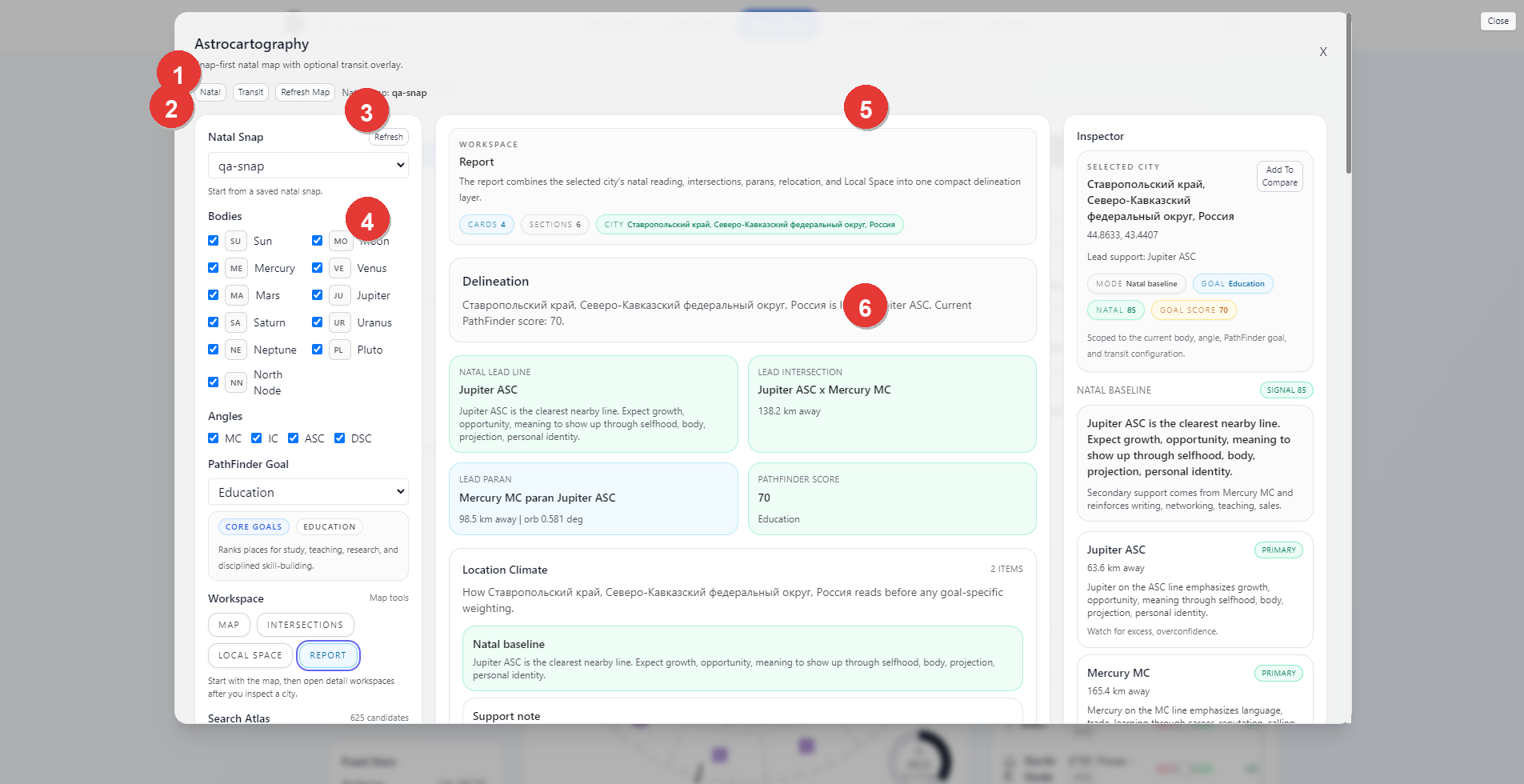
- Natal or Transit mode bar and refresh controls
- Natal snap and filter rail
- Report workspace header
- Delineation and support cards
- Inspector summary for the selected city
- Detailed line-reading cards
The Report tab is the compact synthesis view for a selected city.
It combines the selected location's reading into one place, including:
- the city summary
- the main delineation
- lead-line or intersection support
- goal score or PathFinder framing
- inspector details for the selected city
- the supporting line cards shown in the right rail
This is the workspace to use when you want a readable, compact location summary instead of a raw map-first view.
Practical Workflow
For most users, the cleanest Astrocartography workflow is:
- save or load the natal snap you want to use
- open Astrocartography
- choose the working bodies, angles, and PathFinder goal
- search best cities or inspect the map manually
- click
Inspecton a city that looks promising - move through
Intersections,Local Space, andReportfor the deeper reading
Notes
- A saved natal snap is required.
- Transit mode overlays the natal map rather than replacing it.
- General inspection is available without a PathFinder goal, but atlas ranking is designed around the selected goal model.
- The report view is most useful after a city has already been inspected from the map or best-matches rail.