 Vox Stella
Screen At A Glance
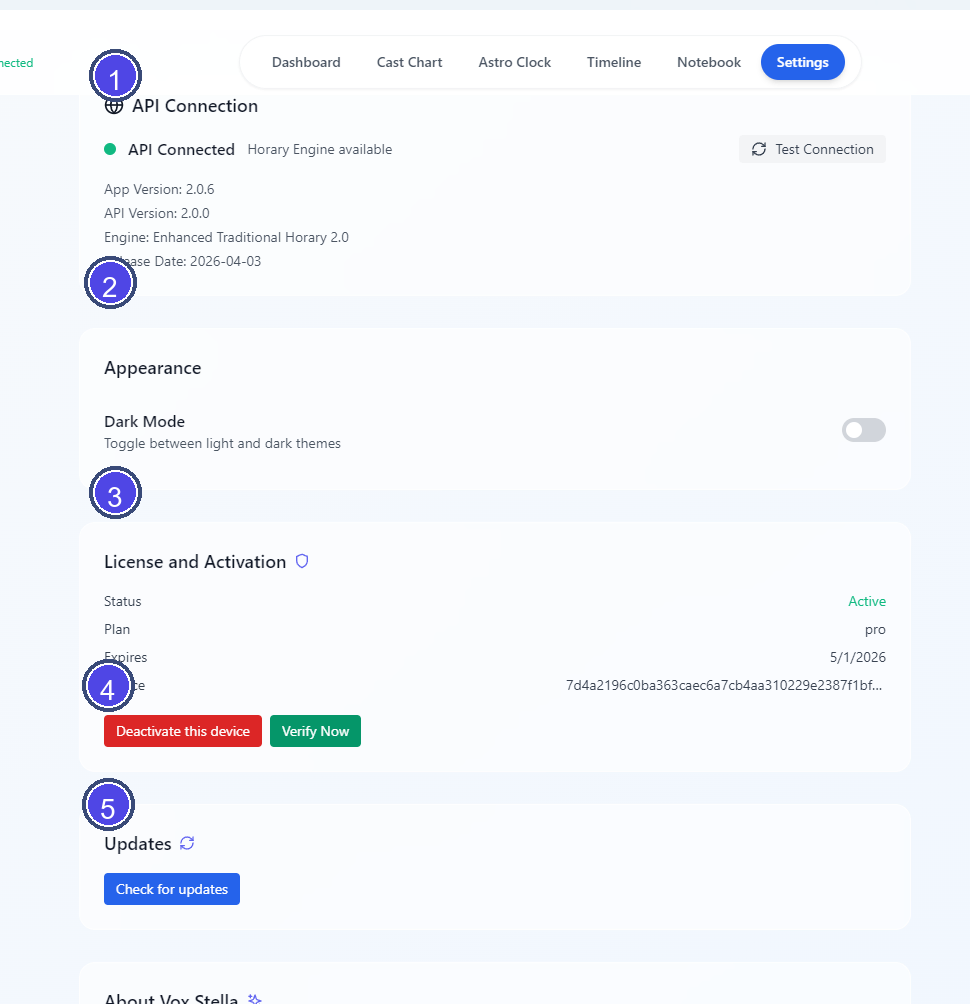
Legend
- API Connection section
- Appearance section
- License and Activation section
- Activation and verification controls
- Updates section
API Connection
The API Connection section shows the current backend status.
When available, it displays:
- whether the API is connected
- the current app version
- the backend API version
- the horary engine version
- the release date
Use Test Connection to check the current backend connection again.
Appearance
The Appearance section currently includes Dark Mode.
Use this toggle to switch between the light and dark app themes.
License And Activation
The License and Activation section changes depending on the current license state.
If The App Is Activated
The section can show:
- status
- plan
- expiry date when the current license includes one
- device identifier
Available actions can include:
- Deactivate this device
- Verify Now
If The App Is Not Activated
The section shows fields for:
- License Key
- Email (optional)
Available actions can include:
- Activate
- Verify Now
- Purchase License
Updates
Use Check for updates to ask the desktop app to check for a new version.
If an update finishes downloading, Settings can also show Restart to update.
About Vox Stella
The About section summarizes the current app environment, including:
- app version
- backend API version
- engine name
- ephemeris source
- default house-system information
- enhanced feature summary
- listed classical sources