 Vox Stella
Screen At A Glance
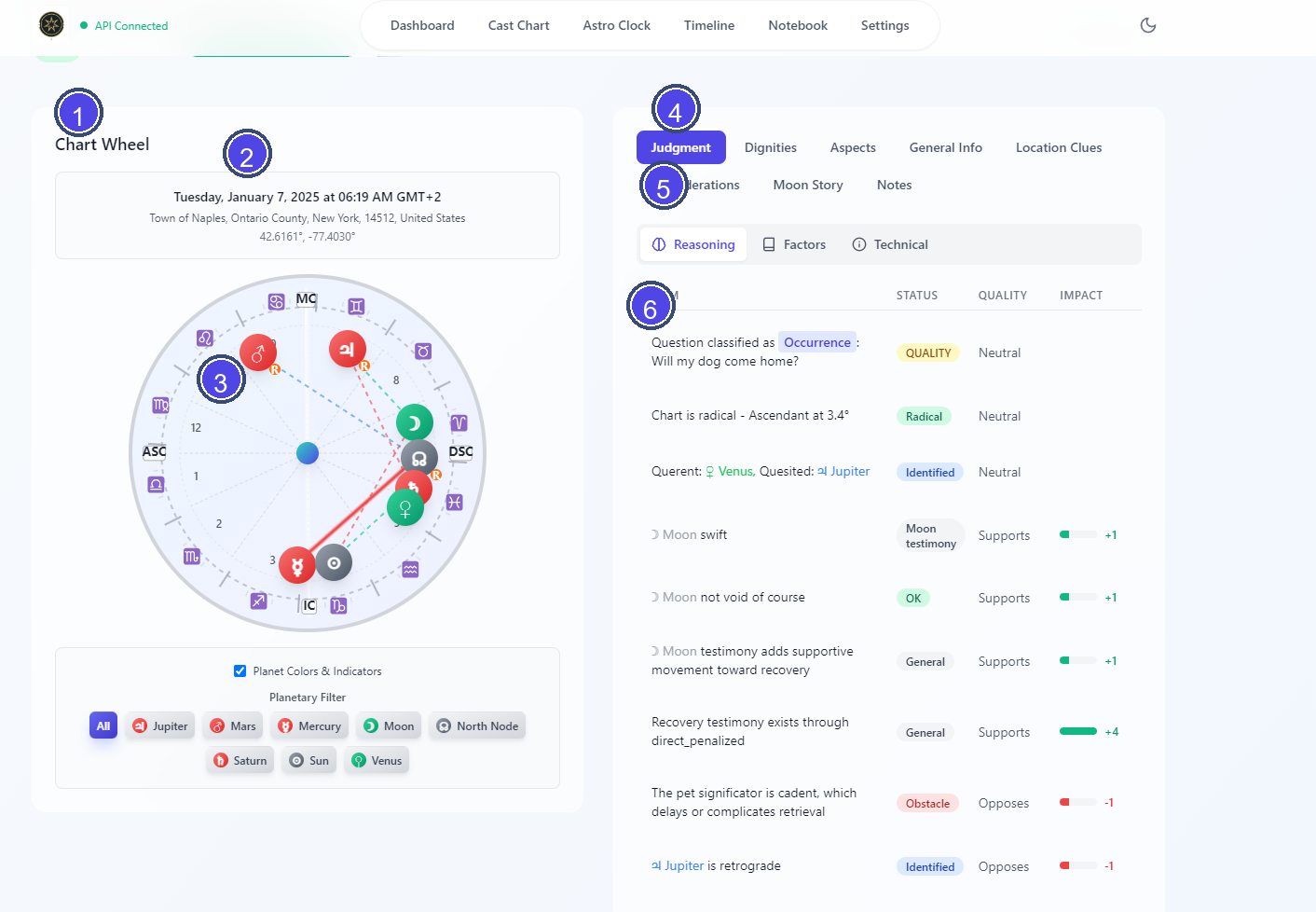
- Chart wheel panel
- Chart date, time, and location summary
- Wheel and planet display area
- Main analysis tabs
- Judgment sub-tabs
- Active analysis content
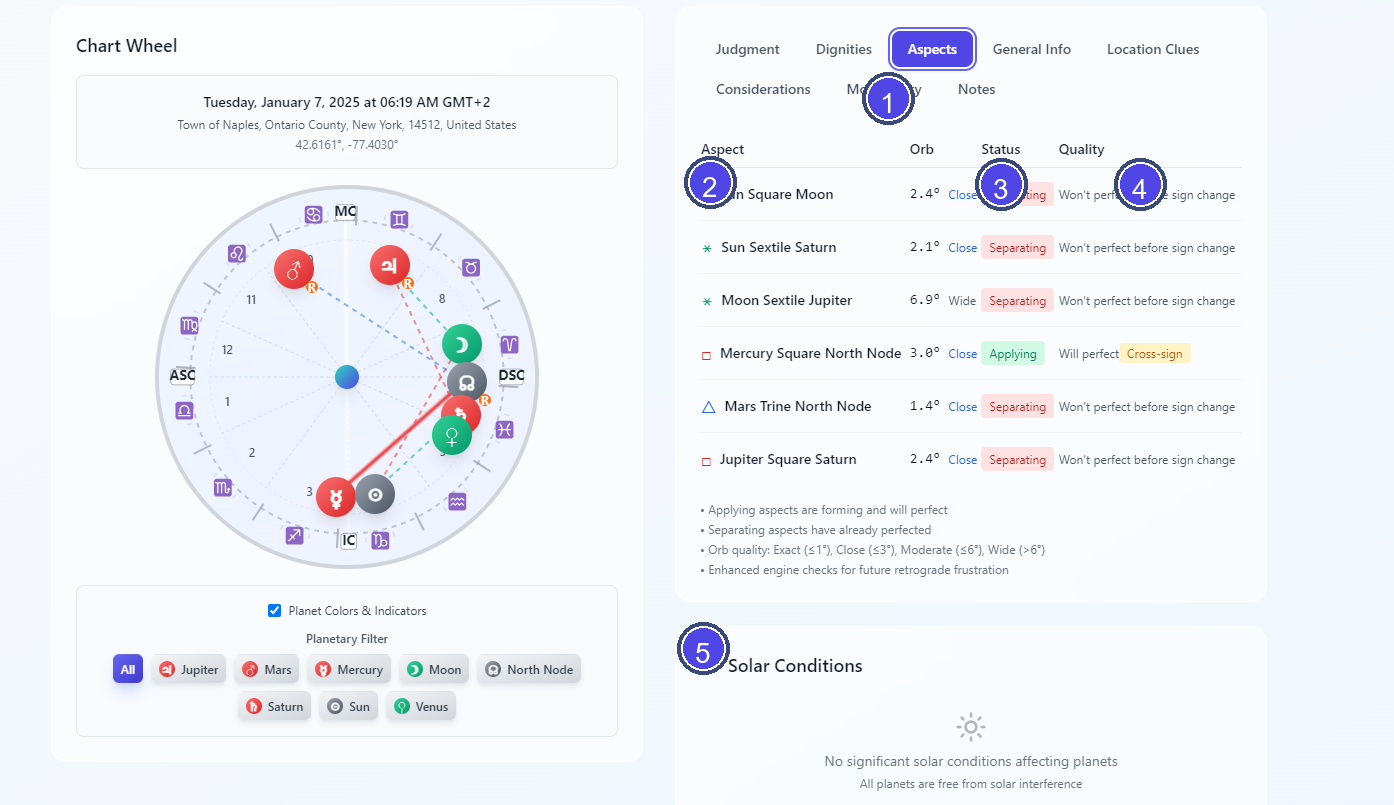
- Active main tab
- Aspect list
- Applying or separating status
- Perfection or cross-sign notes
- Solar Conditions panel
Header Area
At the top of the workspace you will see:
- the horary question
- the verdict and confidence gauge when the app is activated
- badges such as
Enhanced,Solar Conditions, andDemo Chartwhen they apply
If the app is not activated, the header shows a notice instead of the verdict.
Header Actions
The action buttons in the top-right require activation.
- Share chart uses the system share sheet when available, or copies share text plus chart data to the clipboard.
- Analyze with AI copies a structured horary-analysis prompt to the clipboard for use in an external AI assistant.
- Download JSON exports the chart data, metadata, and notes as a JSON file.
Chart Wheel
The left side of the workspace shows the chart wheel. It renders the houses, planets, aspects, and solar-condition styling for the current chart.
Main Analysis Tabs
The right side of the workspace contains the main analysis tabs.
Judgment
The Judgment tab is split into three sub-tabs:
- Reasoning shows the judgment breakdown and the final confidence arch.
- Factors shows the houses examined, the querent and quesited rulers when present, traditional factors such as perfection or reception, and any timing text returned with the chart.
- Technical shows chart details such as the Ascendant, house system, engine version, and demo status when applicable.
If advanced override flags were used during casting, the Judgment tab shows a banner explaining which traditional restrictions were bypassed.
Dignities
The Dignities tab lists each planet with:
- sign
- house
- dignity label
- dignity score
- a strength bar
- a retrograde marker when applicable
Aspects
The Aspects tab lists the major chart aspects with:
- the two planets involved
- aspect type
- orb
- applying or separating status
- perfection notes, including cross-sign warnings when relevant
General Info
The General Info tab shows:
- planetary day
- planetary hour
- Moon phase
- Moon mansion
- Moon condition, including void-of-course status
- end-of-matter information from the 4th house cusp and planets in the 4th house
Location Clues
The Location Clues tab appears only for supported location-type horary charts, such as lost-object or missing-pet style cases.
Considerations
The Considerations tab shows the chart's traditional caution flags, including:
- radicality
- Moon void-of-course status
When the chart is non-radical, the panel explains the specific issue and shows extra context for cases such as early Ascendant, late Ascendant, Saturn in the 7th, or Via Combusta.
Moon Story
The Moon Story tab focuses on the Moon and currently shows:
- the Moon's sign, house, speed, and dignity score
- void-of-course status
- current Moon aspects
- projected future Moon aspects over the next 30 days
Notes
The Notes tab lets you write and save chart notes for the current chart. These notes are stored locally.
Solar Conditions Panel
When solar-condition data is available, a separate panel appears below the tab area. It can show:
- Cazimi
- Combusted
- Under the Beams
If no significant solar conditions are present, the panel says so explicitly.
Activation Behavior
The tab bar remains visible even when the app is not activated, but the detailed analysis area is masked until activation is completed.