 Vox Stella
Screen At A Glance
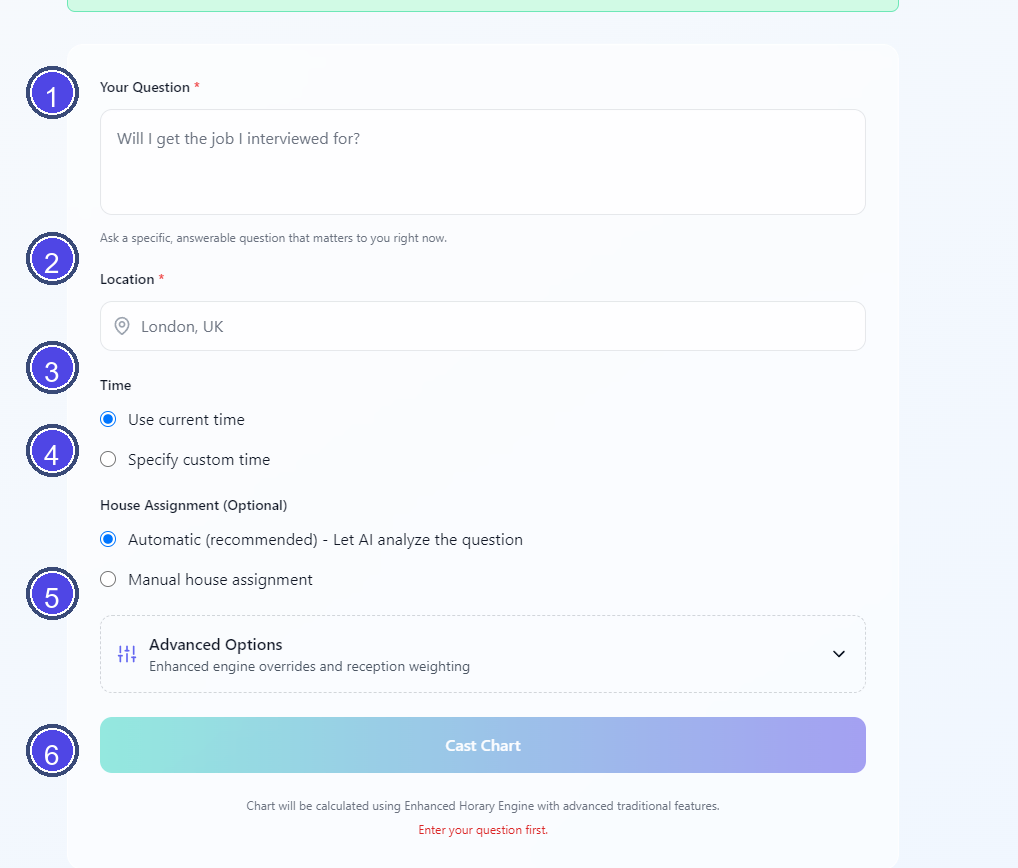
Legend
- Question field
- Location field
- Time mode selector
- House assignment selector
- Advanced options panel
- Cast Chart button
Before You Cast
- In the packaged desktop app, horary casting requires activation.
- If the horary engine is connected, the screen shows Horary Engine Available.
- If the API is offline, the screen warns that a demo chart will be created and saved locally instead of a live calculation.
- The Cast Chart button stays disabled until the required inputs are present.
Required Fields
Your Question
Enter a clear, specific horary question. The screen expects a question that is answerable and relevant now.
Location
Enter the place for the chart. The form offers simple location suggestions while typing.
Time Options
You can cast using either:
- Use current time
- Specify custom time
If you choose custom time:
- both Date and Time are required
- the timezone controls appear in this mode
- the app converts the chosen date into the format expected by the backend
- the timezone is auto-detected from the location unless you switch to manual override
Timezone
- Auto-detected uses the current location input.
- Manual Override lets you choose a timezone from the built-in list.
House Assignment
House assignment is optional.
- Automatic (recommended) lets the app analyze the question and assign houses.
- Manual house assignment lets you enter houses as comma-separated numbers.
At minimum, a manual house entry must include the querent and quesited houses. Example:
1,7for querent and partner or opponent
Common examples shown in the UI:
1,2for money1,5for children1,10for career1,4for home
Advanced Options
Advanced options appear only when the horary engine is connected.
They currently include:
- Override Radicality Warnings
- Override Void Moon Warnings
- Override Combustion Penalties
- Override Saturn 7th Warnings
- Exaltation Confidence Boost
These options change how the enhanced horary engine handles traditional restrictions and reception weighting. They are not general-purpose defaults.
What Happens When You Click Cast Chart
When you click Cast Chart:
- the app validates the required fields
- if the engine is connected, it sends the request to the horary backend and opens the result screen
- if the engine is offline, it creates a demo chart and opens that instead
Practical Tips
- Use a precise question instead of a broad topic.
- Use custom time only when you want a specific historical or controlled chart time.
- Leave house assignment on automatic unless you already know which houses you want the engine to use.